WhatsApp roll out Screen Sharing feature.
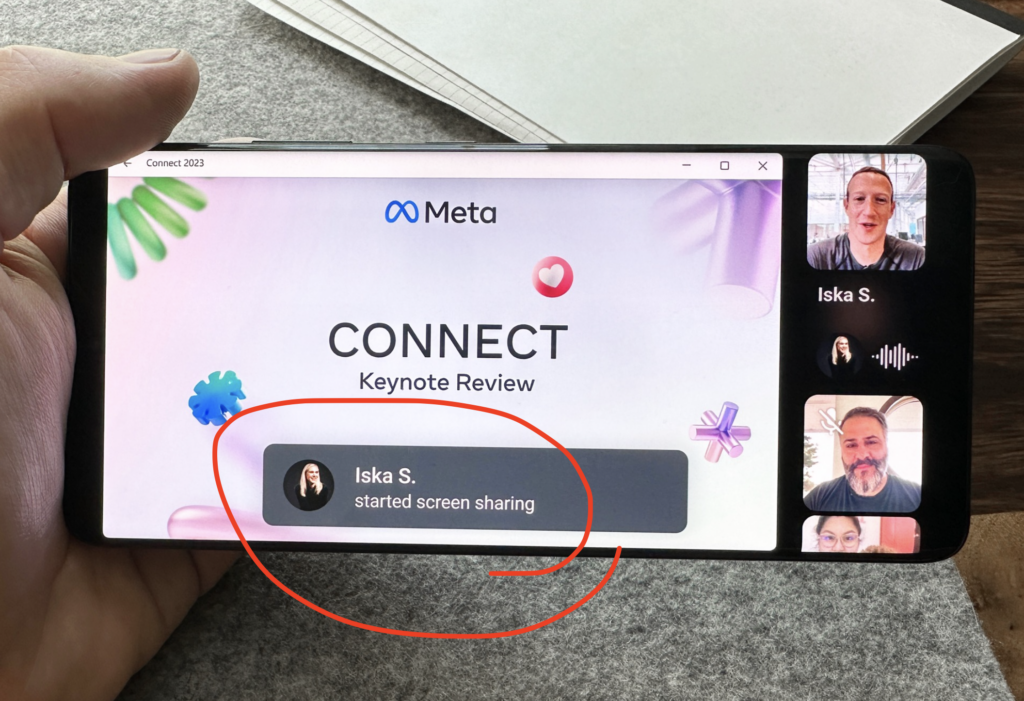
WhatsApp introduced a new feature today that enhances the video-calling experience on its platform: screen sharing. This functionality mirrors how screen sharing functions on other video-conferencing services like Google Meet and Zoom.
The recent addition, unveiled by Meta’s CEO Mark Zuckerberg on the morning of August 8th through a Facebook post and his Instagram feed, enables users to share documents, photos, and even their shopping carts with contacts participating in video conversations.

Screen sharing on WhatsApp initially rolled out to select beta testers on the Android platform in late May. Accessible through a “Share” icon, users can opt to share a single application or their entire screen.
In conjunction with the screen sharing feature, WhatsApp has also introduced the ability to conduct video calls in Landscape mode, offering a more immersive experience.
Here are steps how you can do screen share over a video call.
Sharing your screen during a WhatsApp video call can be a useful way to show documents, photos, or other content to the person you’re talking to. Here are the steps to share your screen over a WhatsApp video call:
- [MUST] Ensure You’re Updated: Make sure you have the latest version of WhatsApp installed on your device. If not, update the app from your device’s app store.
- Initiate a Video Call: Start a video call with the person you want to share your screen with. You can do this by opening the chat with that person and tapping on the video call icon.
- During the Call:
- Once the video call is connected, look for the call controls on the screen.
- Tap on this “Share” icon. WhatsApp will prompt you to choose whether you want to share your entire screen or a specific app/screen.
- Select the option you prefer. If you choose to share a specific app/screen, you’ll be asked to select the app or screen you want to share.
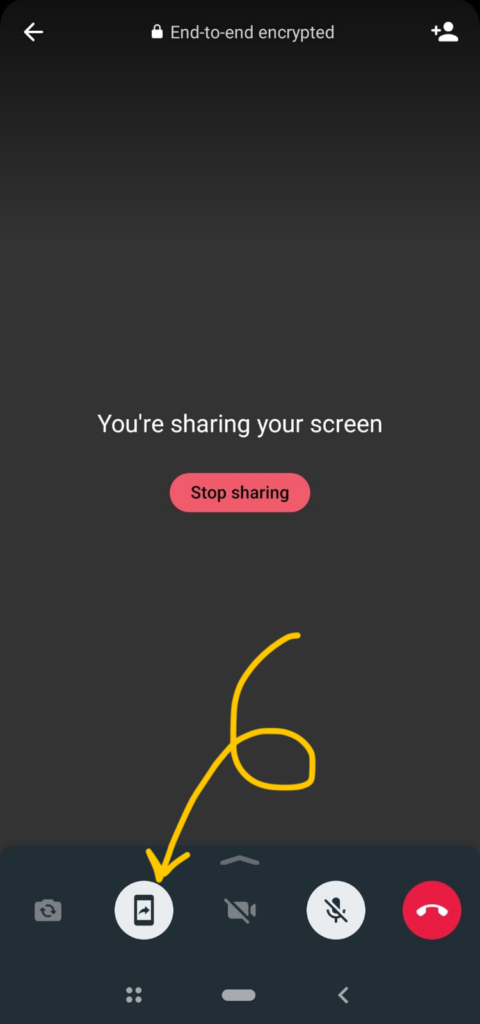
- Permission and Screen Sharing: WhatsApp may ask for permission to capture your screen. Grant the necessary permissions so that the app can share your screen content with the person on the other end of the call.
- Sharing: Once you’ve granted the required permissions, your screen will be shared with the person you’re calling. They will be able to see whatever you’re displaying on your screen in real-time.
- End the Call: When you’re done with the screen sharing and your conversation, you can end the video call as you would normally.
Please note that the availability and functionality of screen sharing on WhatsApp can vary based on the device you’re using and the version of WhatsApp you have. If you don’t see the screen sharing option, it’s possible that your version of WhatsApp doesn’t yet support this feature or that it’s not available in your region.
I have shared how you can keep track of WhatsApp Groups you have joined with your number. You can find your all Whatsapp Group using these steps.